
A schedule is your recurring temperature plan. A hold is an exception to that plan. “Override” describes changing what would otherwise happen, but the word alone does not tell you when the exception ends. For a one-off change, check the displayed end time. For a recurring change, review the schedule. If a setting remains active until you cancel it, make the return to normal part of your plan.
The exact labels and behavior depend on the thermostat model. This guide explains how to make that decision; it is not a universal button sequence or a claim that every Grus thermostat offers the same controls.
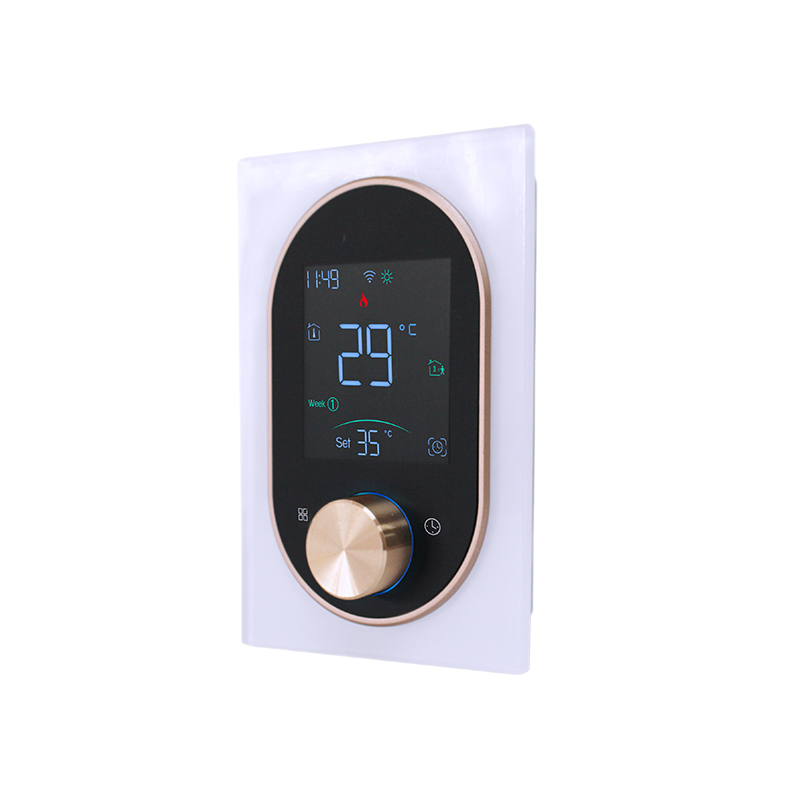
The header is an illustrative home scene, not a photograph of a Grus thermostat. The timeline below is a simplified example, not an app screenshot or a temperature recommendation.
Compare the settings by their end condition
The most useful distinction is not the button’s name. It is what the thermostat is expected to do next.
| Setting | Everyday purpose | What to verify |
|---|---|---|
| Schedule | Repeat a plan across selected days and times. | The day, time, mode, and next scheduled change. |
| Temporary hold | Make an exception for a limited period. | The actual end time or event that ends it. |
| Permanent hold | Keep an exception active until it is canceled. | How to resume the schedule and who will do it. |
| Override | Change the normally selected setting. | Whether this specific override is timed, event-based, or indefinite. |
Trane’s explanation of Hold distinguishes temporary holds from settings that require a manual return to the schedule. Its model examples also show why you should not assume that every temporary override ends at the very next programmed period: behavior can include a duration or minimum time.
Treat the table as a vocabulary guide. Your model’s visible status and manual determine its operation.
Choose a schedule for a repeating routine
A useful planning question is: “Will I want this change again next Tuesday?” If the answer is yes, editing the relevant recurring period may be clearer than making the same manual adjustment every week. If the answer is no, a time-limited exception is worth looking for.
For example, imagine someone now works from home every Wednesday. Before editing anything, write down which Wednesday period no longer matches the household routine. That keeps the intended change narrow. A one-off visitor arriving this afternoon is a different situation; it does not necessarily justify rewriting the whole week.
Smart scheduling is not identical across products. Google’s schedule documentation separates its thermostat models and their scheduling features. It describes both editable schedules and model-dependent automatic behavior. Check the instructions for the exact model rather than following a video for a similar-looking device.
Also distinguish the target setting from the measured room temperature. When recording an unexpected change, capture both labels. “The target changed at 18:00” is a different observation from “the room had not reached the target at 18:00.” This article addresses the first question, not diagnosis of heating or cooling performance.
Use a temporary hold for a one-time exception
Before starting a temporary hold, decide what should end it: a specific time, a fixed duration, or a scheduled transition supported by the model. After confirming it, read the status again. The important result is a visible setting and end condition that match your intention.
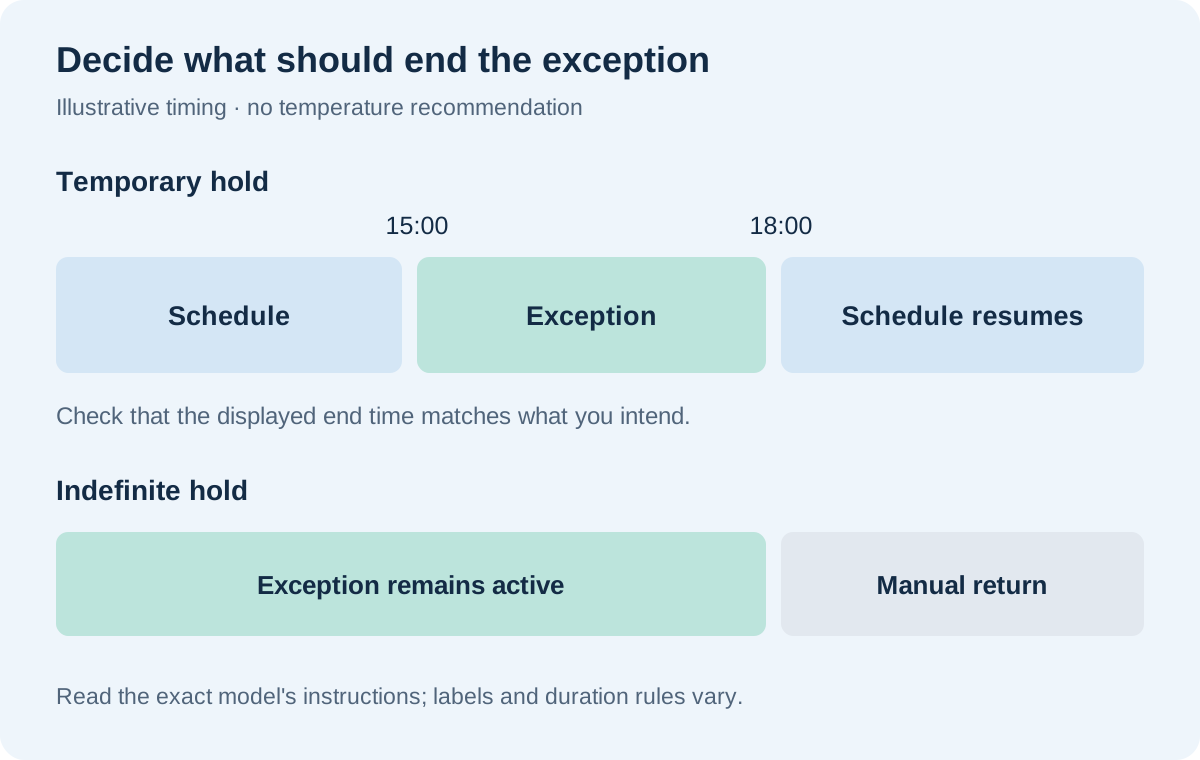
Consider a made-up afternoon plan: your usual schedule changes at 18:00, but you want a different target from 15:00 until then. If the thermostat confirms a hold ending at 18:00, the later return is expected behavior. If you meant to keep the exception until 20:00, the problem is the chosen end condition—not necessarily a device that “ignored” your adjustment.
No temperature values are needed to understand this example. Choose settings appropriate to your household and equipment documentation; a generic article cannot establish those limits for you.
A permanent hold needs a deliberate way back
An indefinite exception can be useful when the recurring plan no longer reflects what you want, but its name should prompt a second question: “When and how will I return to the schedule?” Write that reminder down if the device does not provide the reminder you need.
Do not assume that “permanent” means disabling every other behavior in a connected home. Nor should you assume the same feature exists on all thermostats from one brand. Google’s temperature-hold instructions apply to the Nest Thermostat and Nest Learning Thermostat fourth generation, explicitly excluding certain earlier models. They also distinguish the permitted duration of ordinary presets from an indefinite Eco hold.
That example is a reason to check the model, not a recommendation to use Eco settings or an indefinite hold. A vacation, an occupied home, and a change of work routine can have different requirements. This guide does not prescribe settings for protecting a property or its occupants.
When the temperature changes back unexpectedly
Use the moment of the change to collect a small amount of evidence. Avoid repeatedly adjusting several controls, because that makes the sequence harder to reconstruct.
- Note the exact time and the before-and-after target settings.
- Read whether the screen says Schedule, Hold, Until, Eco, Away, or another status.
- Compare that time with the recorded hold end and the next scheduled period.
- Check whether another household member made a change.
- If connected routines are configured, review their history or settings using the product’s documentation.
The last point is model-dependent. For example, Google documents presence sensing using supported devices and their states. This shows why a connected thermostat investigation can involve more than the visible weekly timetable. It does not prove that presence sensing caused a particular change, or that another brand behaves the same way.
A useful support note might read: “At 15:10 I selected a target and saw ‘Until 18:00.’ At 18:00 the target changed and the screen showed Schedule.” That record describes a sequence. “It keeps resetting” leaves the crucial end condition out.
Review one normal transition
After following your model’s documented return-to-schedule action, record what the screen now says and which scheduled period should come next. Check again after that ordinary transition. You do not need to create extreme setpoints or repeatedly switch operating modes to investigate the interface.
Use a simple observation log: time, target, displayed status, and intended next change. A screenshot of the schedule plus one of the active setting is often enough to explain the question. Do not include account credentials or unrelated household information.
If the displayed state still conflicts with the model’s instructions, contact support. A blank display, equipment fault, or unsafe indoor condition is not merely a scheduling puzzle; seek the appropriate qualified assistance rather than trying to solve it by changing holds.
Frequently asked questions
Is Hold the same as turning the thermostat off?
No. A hold concerns the selected target and its relationship to the schedule. It is not an instruction to switch the system off. Read the operating-mode label separately.
Why does my adjustment disappear at the same time each day?
That timing is worth comparing with the schedule and any hold end time. It is a clue, not proof of a fault or a universal explanation. Record the status at the transition before changing more settings.
Does a hold require Wi-Fi?
Local and app-based controls vary by model. The question of whether a hold exists is separate from which controls remain available offline. See what to check when using a smart thermostat without Wi-Fi and your model’s instructions.
Which controls does my Grus thermostat support?
Another manufacturer’s examples do not establish which controls your Grus model supports. Contact Grus Support with the model, app version, screenshot of the current status, and the behavior you want: a recurring plan, a timed exception, or a manual return to normal. That gives support a concrete question to answer.